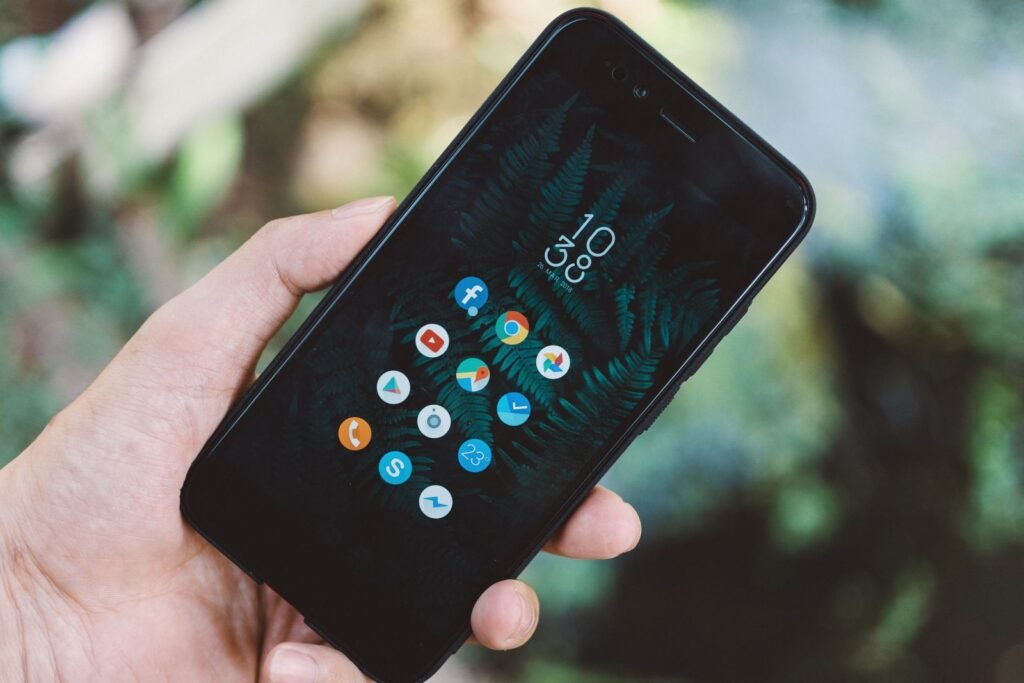
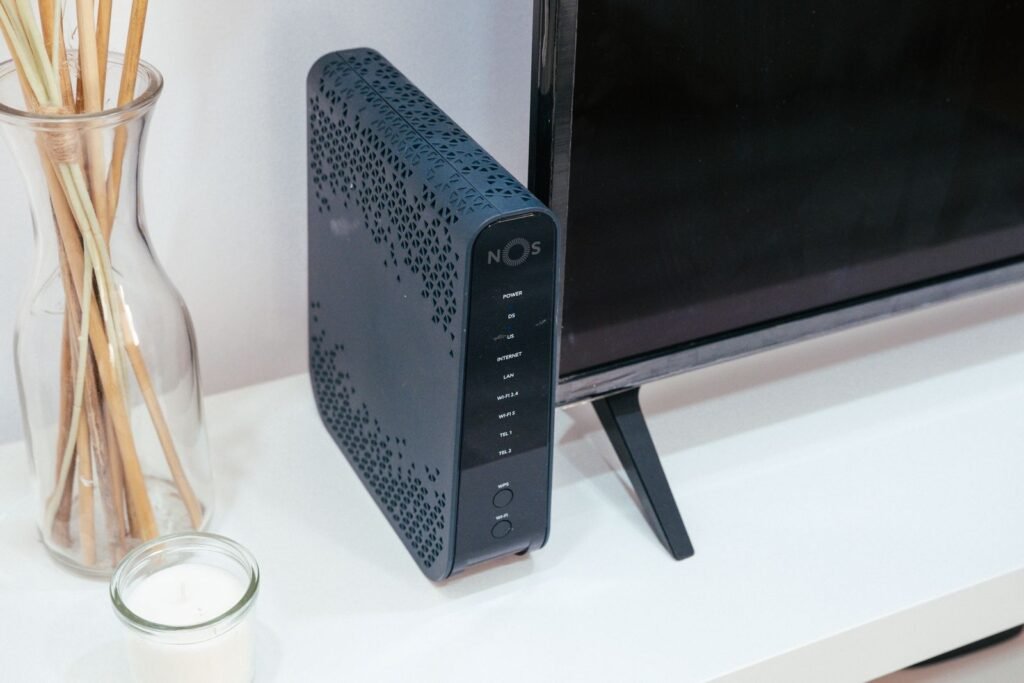
Your sister-in-law is standing in your kitchen holding her phone up like she’s checking for rain, and she has just asked the one question you cannot answer: “What’s the Wi-Fi password?” You’ve had that router for two years. The card it came with is gone. The guy from the cable company typed something in and left. And the whole time, the phone in your own pocket has been connected to that exact network every day. The password was never lost. Your phone has been holding it for you.
Pixel and stock Android: three taps to a code she can scan
If you carry a Google Pixel or any phone running close to plain Android, you can hand the network over without either of you reading a single character out loud. Thirty seconds, start to finish.
- Open Settings.
- Tap Network & internet.
- Tap Internet.
- Next to your network’s name, tap the gear icon. That opens the Network details screen.
- In the row of buttons across the top — Forget, Disconnect, Share — tap Share.
- Confirm with your fingerprint, face, PIN, or pattern.
- A QR code fills the screen. Hold the phone up and let her camera do the rest.
On a Pixel the password is also printed in plain text on the line directly under that QR code, ready to copy. Treat that line as a bonus. The QR code is the part to count on: Android has built this handoff in since Android 10 arrived in September 2019. Only the name of the button changes from brand to brand.
For a network you’re not connected to right now — the guest network, the cabin Wi-Fi from last summer — go back to Internet, scroll to the bottom, tap Saved networks, pick it, then tap Share. Same gear icon, same button, same QR code — the only difference is that you had to go find the network in the list first.
Samsung Galaxy: different menu, different button, less on screen
Samsung is the exception, and it’s a big one, because Galaxy phones are everywhere. Follow Pixel instructions on a Galaxy and you’ll never find the buttons, decide your phone is broken, and go hunting for a screwdriver. Take this path instead — one minute.
- Open Settings.
- Tap Connections — “Network & internet” does not exist here.
- Tap Wi-Fi.
- Tap the gear icon next to your network’s name.
- Tap QR code. On Samsung the button is not called “Share.”
You get a QR code and nothing else. Samsung never prints the password in plain text, no matter how many times you tap. If you need the actual characters, take a screenshot of the QR screen, open Google Photos, tap that screenshot, and tap the Lens button at the bottom of the picture. Don’t point a second camera at the glowing screen; it will only offer to connect, not show the text. What comes back reads: WIFI:T:WPA;S:YourNetworkName;P:YourPasswordHere;H:false;; Your password sits after P: and stops at the next semicolon. Labels differ again on Xiaomi and OnePlus, so if neither wording matches, look for the gear beside the network name — the share screen is one tap behind it.
iPhone: the password is in Settings, in plain text, ready to copy
Apple stopped hiding this in iOS 16 and iPadOS 16.1. Ten seconds for the network you’re on right now.
- Open Settings and tap Wi-Fi.
- Find the network you’re using.
- Tap the Info button — the small “i” in a circle to the right of the name.
- Tap the Password field.
- Authenticate with your passcode, Face ID, or Touch ID. The password appears, with a Copy option.
For a network you’ve used before but aren’t on now, tap Edit in the top right corner of the Wi-Fi screen and authenticate. The full Known Networks list opens. Tap the Info button beside any network with a lock icon, then tap Password.
On iOS 18 or newer there’s a better move for the guest in your kitchen: open the Passwords app, authenticate, tap the Wi-Fi card, pick your network, then tap Copy Password — or tap Show Network QR Code and let an Android guest scan it. No AirDrop, no adding her to your contacts, no reading 20 characters out loud twice.
The catch nobody tells you
Three things quietly break the advice above, and the quick how-tos skip all three.
The iPhone one. Sometimes you tap Password, authenticate correctly, and nothing appears. The explanation you’ll read online — that it came from a different Apple ID — is backwards. Passwords you typed on your own iPad under the same Apple ID do show up: iCloud Keychain carries Wi-Fi credentials across your approved devices. The real cause: if you joined that network by accepting the “Share Password” pop-up from someone else’s iPhone, the password was never written into your keychain. Apple’s proximity sharing hands your phone a finished connection over Bluetooth without storing the text — deliberate protection for whoever owns the network. So the rule that holds is: you only see a password somebody typed by hand on that specific device. The fix, Forget This Network and rejoin by typing it manually, only helps if you already know it. If you don’t, go to the router.
The Samsung one. A Galaxy shares only the network it’s connected to right then. A saved but disconnected network can’t be shared at all.
The sticker one, and this is the one that bites you after two years. What’s printed on that label is the factory default. It’s only still correct if nobody ever changed the password on the admin page — not you, not your son-in-law, not the technician who “fixed the internet” one afternoon. The label keeps advertising the old password with total confidence.
If no phone in the house can help: the router page
This works when every phone fails you, and it costs about five minutes.
First get the right address. There’s no universal one, and a wrong guess just times out with no explanation.
| Address to type | Brands that use it by default |
|---|---|
| 192.168.1.1 | ASUS, Netgear, Linksys, Cisco |
| 192.168.0.1 | TP-Link, D-Link, Arris, Tenda |
To skip the guessing: on Windows, press the Windows key, type cmd, press Enter, type ipconfig, press Enter again, and read the Default Gateway line. On iPhone, tap the Info button in Wi-Fi and read the Router field. On Android, read the Gateway field on the Network details screen. Type that address into your browser, log in with the admin credentials, then open Wireless, Wi-Fi Settings, or Wireless Security. The field you want is labeled Passphrase, Pre-Shared Key (PSK), WPA Pre-Shared Key, or Wi-Fi Password. If it shows dots, click the eye icon or the Reveal checkbox beside it. If the page refuses your login outright, you have a locked gateway from your internet provider. The password lives in the app you already use to pay that bill — Xfinity, My Spectrum, AT&T Smart Home Manager, My Verizon — under the section called Internet or Wi-Fi. Log in there and the network name and password are printed on the screen.
How to know you’ve got the real one
Pick up your phone now, before the next visitor asks. Open Settings, follow the path for your brand, and screenshot the password tonight. Thirty seconds today saves you a scavenger hunt behind the TV stand later.