
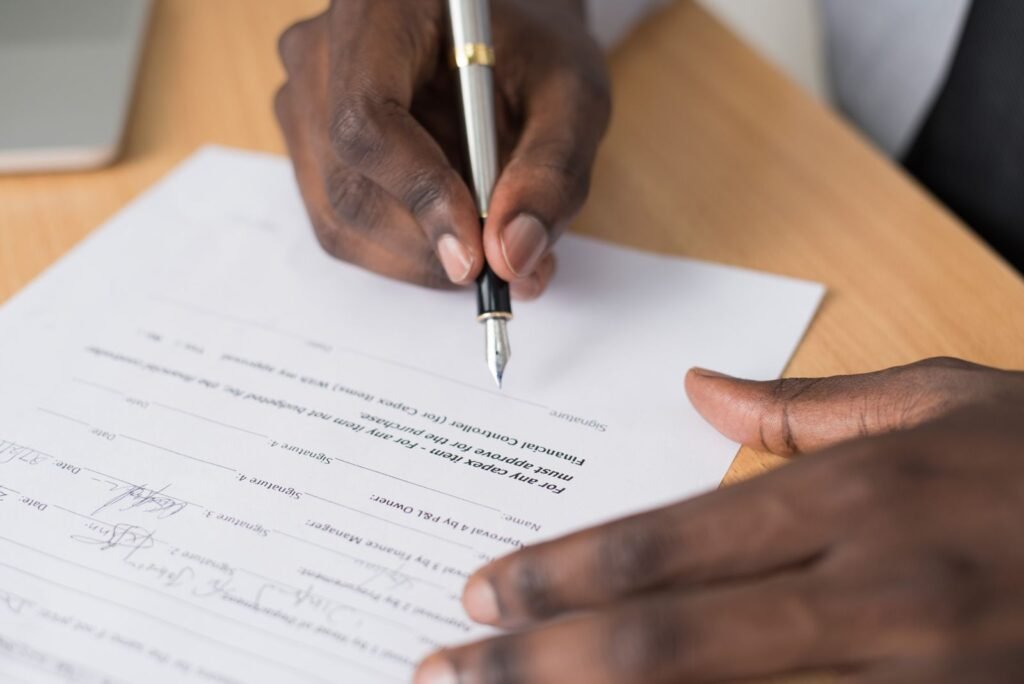
HR needs the signed form back today, so you flatten it on the kitchen counter, hold your phone over it, and take the best picture you know how to take. Corners in frame. No shadow from your own head. Every line readable. You attach it and hit send — and the next morning the reply lands: Please resend this as a PDF. You open the photo and stare at it. It’s straight, it’s bright, nothing is wrong with it. That’s the part nobody explains: the photo was never the problem. The file type was, and retaking the picture forty more times will not fix a file type.
Here’s the idea that makes this easy forever. Scanning on your phone is not a better way of photographing paper — it’s a format converter that happens to use the camera. Your phone already has that converter built in, behind a button you’ve walked past for years, and you don’t need to download anything to use it.
iPhone: the fastest path is the Files app, not the camera
Most people are pointed to Notes. Notes works, but it buries the finished PDF inside a note and then you have to dig it back out. The Files app skips that — the PDF lands in a folder you picked, named and ready to attach. Under a minute.
- Open Files and go to the folder you want the document to live in.
- Tap the More button — the three dots in a circle.
- Tap Scan Documents. The camera opens, but this is not the Camera app.
- Hold your iPhone over the page and keep it steady on Auto — it fires by itself the moment it finds the four edges. In bad light, switch to Manual and press the shutter button yourself, or press either volume button.
- Drag the corner handles onto the edges of the paper, then tap Keep. Some versions of iOS label that same button Keep Scan.
- Scan the next page. Pages stack into one document, not three loose files.
- Tap Done, pick the folder, tap Save.
Attach it like anything else: in Mail, tap the attachment button, tap Browse, pick the file. If you’d rather use Notes — open a note, tap the attachment button, tap Scan Documents — Apple’s own sentence is worth memorizing: “The document is saved as a PDF in the note.” To get it out, tap the scan to open it full screen, tap the Share button in the top right corner — the square with an arrow coming out of it — then tap Save to Files to put it in a folder, or tap Mail to send it straight to whoever is waiting.
Android: Google Drive converts it, if you pick the right box at the end
Google Drive is already on nearly every Android phone, and its scanner was just rebuilt: the redesign began rolling out May 29, 2026, and multi-page scanning went live June 3, 2026 — though Google says it’s “only available for Android devices with 8GB+ RAM.” Your screen may not match your neighbor’s. Two minutes.
- Open the Google Drive app.
- At the bottom right, tap the Camera button. (On iPhone it’s different: tap Add, then Scan or the camera icon. If your screen matches neither, hunt for the camera icon — that’s the door.)
- Point the camera at the document. A blue line draws itself around the page when it locks on.
- Take the shot, or switch between Manual and Auto capture if it keeps firing early.
- Fix it with Crop & Rotate, Filter, and Clean — that last one wipes out smudges and the edge of your thumb. Then Add for the next page.
- Tap Done and give it a name, or accept the one Drive suggests.
- Choose the format: .pdf or .jpg. This single tap is the whole errand.
- Set Location if you want it in a specific folder, then tap Save.
Files by Google and Samsung Galaxy: two “scan” buttons that behave nothing alike
If you have Files by Google — standard on Pixel and plenty of other Androids — there’s a Scan button at the bottom right. Point, choose Auto capture or Manual, tidy the page, tap Done. Google says these are “automatically saved as PDFs,” landing under Recents and in a Scanned folder inside Downloads. No format question, no trap.
Samsung Galaxy catches the most people, because there the file manager is called My Files and it doesn’t scan at all. The scanner lives in the camera, switched off until you turn it on — ten seconds, once. Open the Camera app, tap the gear icon in the top left corner, tap Intelligent features, and turn on Scan documents and text. On older Galaxy phones that switch sits one level deeper: tap the words Scene optimizer — the words, not the toggle — and turn it on in there. Then frame the paper, tap the Scan button that pops up over the page, tap Save.
Now read this twice, because it undoes everything: Samsung saves that scan to the Gallery app, as an image. The button says Scan. The output is a picture. On a Galaxy, use Google Drive when it has to be a PDF.
The catch nobody tells you: a photo of a document is not a document
Your first attempt didn’t bounce for looking bad. It failed in four layers, and understanding them once means it never happens again.
One: the upload box rejects the extension before it ever looks at your picture. Workable, a hiring system used by more than 30,000 companies, publishes what its résumé field accepts: .pdf, .doc, .docx, .rtf, .html, .odt. Six formats. No .jpg, no .png, no .heic. Your photo isn’t graded and found blurry — it never gets in the building. That’s why the reply says “send a PDF” and never says “the picture was hard to read.”
Two: even when an image does upload, the software can’t read it. These systems pull text out of files, and a .jpg is a grid of colored dots with no text layer underneath — a silent rectangle. On that same Workable system, the custom-question upload does accept .jpg, .png and .tiff, capped at 20 MB instead of 5 MB. One file gets read by a machine; the other gets looked at by a person.
Three: your iPhone hides this from you. Anything shot with the Camera app comes out as HEIC or JPEG, period. It feels like scanning because you lined the page up so carefully. Only Scan Documents, inside Notes or Files, produces a PDF.
Four — the trap inside the trap: two popular scanners hand you an image anyway. Google Drive offers “.pdf or .jpg” at the last step. Samsung drops the result into your Gallery as a photo. Both buttons say “scan.” Neither promises a PDF. Hold on to one idea and you’ll get it right on any phone: the camera is the tool, the PDF is the product.
If they want it signed too
Don’t print it, sign it, and photograph it — that puts you back at square one. On an iPhone, open the file and tap the Markup button, tap +, then Add Signature. Sign with your finger; if it comes out like a seismograph, tap Clear and go again. Tap Done, drag it into place, pull the corner dots to size it. To type into a form, tap + and choose Add Text Form Box. Thirty seconds, and your signature is saved for next time under Add or Remove Signature.
How to know it actually worked
Do it now, while the form is still on the counter. iPhone: Files → More button → Scan Documents. Android: Google Drive → Camera → and at the end, .pdf. Send it once, correctly, and stop waiting on the email that asks you to send it again.